Miracle Piano Teaching System Frequently Asked Questions for PC Versions |
|||||
by
John M. Zeigler, Ph.D. |
 or
or
 below
below

| A | |
lthough the Miracle Piano Teaching System is no longer manufactured, it is still a worthy, though very dated, product with thousands of users. We have previously reviewed the Miracle Piano Teaching System here on PEP. For that reason, we get many questions about it. Here, as reference for those who have the Miracle, are answers to some of the most common questions. Well in excess of 90% of the questions we get about the Miracle are answered on this page, so, if you have questions about the Miracle, your time is well spent reading this page.
This page has information for the PC version of the Miracle. Users of non-PC versions (Macintosh, Amiga, Genesis and NES/SNES) should also review our Miracle Piano Teaching System FAQ for non-PC Versions.
Please note that we are NOT "Miracle Technical Support," nor are we employees of any firm connected with the Miracle, nor do we have any financial interest in any such firm. We have not sold and do not sell Miracle software or hardware. We do not receive any remuneration of any sort from our efforts to help those who contact us about the Miracle. We do not take responsibility for the accuracy of the statements below or for your ability to carry them out on your system. Exercise due care when you make any changes to your hardware or software configurations. If you have special knowledge of the Miracle for any computer type or are willing to provide other help, such as documentation, please help us help others by sending me an e-mail describing your expertise or information.
You may print a single, personal-use hard copy of this page without requesting reprint permission from us. If you wish to reprint this page for commercial uses or other distribution, please see Reprinting from The Piano Education Page for terms and conditions.
If, after reading this FAQ, you find that your question or problem is not addressed, you can report a Miracle problem to us on our Miracle problem report form. Please use that form to report problems or ask questions, since it will help make sure that you give us the necessary information to assist. Where possible, we'll do our best to help.

 There
is a
Miracle Piano Support archive from 1997 for both the PC and Macintosh versions,
taken from the old site of JumpMusic , the last owner of the Miracle rights.
Although dated and limited in scope, it may be useful for many Miracle
owners. This archive was blocked for some time by the current domain owners,
but has recently become available again from that link. Tech support requests or similar
requests for help should NOT be sent to the links provided in that archive,
as the company is long out of business.
There
is a
Miracle Piano Support archive from 1997 for both the PC and Macintosh versions,
taken from the old site of JumpMusic , the last owner of the Miracle rights.
Although dated and limited in scope, it may be useful for many Miracle
owners. This archive was blocked for some time by the current domain owners,
but has recently become available again from that link. Tech support requests or similar
requests for help should NOT be sent to the links provided in that archive,
as the company is long out of business.
About the Miracle
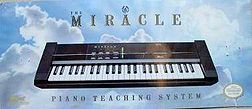
Q: Just what is the Miracle Piano Teaching System?
A: The Miracle was developed in the early 1990's by Software Toolworks. It
was originally sold as a hardware/software combination which included the
software and a small keyboard, along with cables for connection to a
computer, power supply, manuals,
etc. (full list below). In essence, the
Miracle software offered lessons in playing the piano for beginning
students. The keyboard communicated back and forth with the computer or game
system by serial or MIDI cables, thus providing feedback and drill for the
student, as well as interactive piano learning games. Versions of the
software were ultimately made available for the PC, Macintosh, SNES, Amiga
and Sega Genesis, both separately and with the hardware. Although relatively
rare, conversion kits which included the software for use with an already
owned Miracle keyboard were also purchasable that allowed one to convert the
game system versions to PC or Mac software. The Miracle was highly regarded
by both teachers and students (Miracle Piano Teaching System Review
here), but its $500 list price (in 1990) made it
prohibitively expensive for most potential users. It was closed out, whence
many of its owners, and discontinued about 1994. Software Toolworks was
bought out around 1995, so support for the Miracle is not available in any
form. We try to help Miracle users independently as part of
pianoeducation.org's educational role.
The Miracle and Other Software
Q: Can I use a Miracle Piano Teaching System keyboard with other piano
or teaching software?
A: In our experience, almost all other Windows MIDI-capable programs also work
with the Miracle keyboard, subject to two caveats. First, you must use
a MIDI cable, properly connected to the MIDI In/Out
connectors on the keyboard and the MIDI/joystick connector on your
computer's sound card (the one connected to the speakers), if your sound card
has one. Otherwise, you can use a USB-to-MIDI adapter cable to connect the
keyboard to one of your USB ports. You cannot
use the serial cable provided with the Miracle and have the keyboard work with other MIDI
programs, since the serial interface only works with the Miracle software. Second, you may
have to "tweak" your MIDI configuration under Windows as described below.
Fortunately, this is easy to do and doesn't demand any special knowledge. See below for details on how to carry this out. This may be the best
use of a Miracle keyboard, given the increasingly dated nature of the Miracle software.
Q: Can I use a Miracle Piano Teaching System software with other
MIDI-compatible keyboards?
A: Perhaps. If the keyboard is connected to the computer by a MIDI cable (not the
serial Miracle cable supplied with the keyboard) and if you have the configured the software when you installed it to
use the MIDI inputs, it may well work. The
The Miracle Piano Teaching System User's Guide
- Software only version has limited
instructions (p. 6) for connecting and configuring a non-Miracle
keyboard for use with the Miracle software.
Q: Can I use my non-PC Miracle keyboard with a PC?
A: I have confirmed with one of the original designers of the Miracle
keyboard that the keyboard itself is the same for all versions of the
Miracle system. The only hardware difference is the cable connecting it to
the device running the software. Thus, if you have, say, the Miracle system
for the Amiga, you will be able to use it with your PC, if you get a MIDI or
properly configured serial cable to connect it to the PC. Of course, your
Amiga software will not run on the PC, unless you use emulator software.
To learn more about the necessary connections to create a replacement serial
cable for the Miracle, see our article, Making a
Replacement Miracle Cable.
Q: I have the Piano Discovery System. Can you help
with questions or software?
A: The Piano Discovery System (PDS),
reviewed in three different versions here on PEP, was developed by
JumpMusic for Windows 3.1 (16-bit Windows) from the original Miracle Piano
Teaching System, to which JumpMusic acquired the rights from The Software
Toolworks. JumpMusic is long out of business, so neither the Miracle nor the
Piano Discovery System are available commercially, except as aftermarket
items. Just as with the Miracle, formal support for PDS is not provided by
anyone. Because the PDS is a fundamentally different system, programmed in a
different way, we cannot provide help, support or replacement software for
it.
However, I have recently found a
tech support archive for JumpMusic products at web.archive.org. Owners
of PDS for both the PC and Macintosh can consult this for help. A limited
Miracle Piano Support archive for both the PC and Macintosh versions can
be viewed at the same site. Both of the
archives are limited to the most
common problems encountered, but may be helpful to some users of these two
systems. Those interested in limited information about PDS issues may
consult our page, Piano Discovery System FAQ.
Tech support requests or similar requests for help should NOT be sent to the
links provided in those archives, as the company is now out of business.
Sending such requests may result in loss of all access to the archives,
since the domain names are now owned by another firm.
Availability
Q: Where can I get Technical Support for help with my Miracle? Where can I buy
the Miracle software?
A: Since the Miracle is no longer manufactured, Jump!Music, the current owner of
the rights to the Miracle does not support the product. The situation is further complicated by the fact that Jump!Music
is
out of business and can't be directly contacted. At any given time, there
are usually used copies of the Miracle software and/or hardware available on
various auction sites.
We have very recently discovered a Miracle Piano Support archive for both the PC and Macintosh versions. Although limited, this archive has FAQ's which some owners of the Miracle may find useful. It has now been disabled by the current owner of the domain for reasons which are unknown to us.
Q: Is it "safe" to buy a Miracle system used?
A: The Miracle keyboard is pretty rugged and rarely fails. The main problems
with used Miracle systems are that parts are often missing (manuals and
keyboard cabling, mostly) or one or more of the accompanying software
diskettes is no longer readable. If you buy the system used, make sure you
get all the parts (full list just below) and insist that the seller test and
guarantee the readability
of the software disks before shipment or delivery,
since it isn't possible to get a full set of new replacement disks by any
legal method of which we are aware.
Q: I bought Miracle software used or online on CD-ROM. Is it legal to
use it?
A: If you buy Miracle software and hardware used, keep in mind that any
"product" that offers the software in any form on CD-ROM, without
accompanying original diskettes, is likely illegally copied in violation of
copyright law, since the software was never supplied on CD-ROM by its
original owner, The Software Toolworks, or its second owner, Jump!Music.
Since copyrights last for 75 years after the death of the author, the
Miracle hardware and software are still covered under registered U.S. and
foreign copyrights. This is a problem if you buy such software, since you can be held
liable for sizable compensatory and statutory damages, as well as attorney
fees, if you use it. You are, of course, free to back up your
own original Miracle diskettes to CD-ROM if you wish (and you probably
should), so long as you keep the original diskettes as proof of ownership.
Q: I have Miracle software on diskettes that read and install without
errors. Should I take any precautions?
A: Yes! Copy (not install) all the files from all the diskettes to your hard
disk, then write them out to a CD-R, as a backup. The magnetic media on all
diskettes have a limited lifetime and become unreadable over time. If you
want to keep your Miracle software, back up the diskettes now!
Replacement Parts
Q: I bought a Miracle keyboard, but don't know if I have all the
parts. What was in the original Miracle box?
A: Here's the full list for
the PC version, taken from the User's
Guide: Warranty
Registration, Foot Pedal, Earphones, Keyboard, The Miracle Card and Quick
Start Card, Power Supply, Cable, The Miracle Keyboard Owner's Manual, User's Guide, Software Diskettes, and Keyboard Overlay. If you're missing the documentation, you can
download the Owner's Manual, User's Guide, The Miracle Card and Quick Start
Card, and Keyboard Overlay below. For information
on cables to connect the Miracle to your computer and power supplies,
see below.
Q: Where can I get a replacement Miracle keyboard, software or accessories?
A: We know of no current commercial source for new Miracle equipment or
accessories. However, you can find several units offered for sale in various
online auctions, if you are willing to consider used equipment. Just search
the site or Google for "Miracle piano." Bear in mind that the software
diskettes are, of necessity, quite old. Make sure that the seller tests the
readability of the software diskettes before you buy them used and will
provide a refund if the disk set is defective. See just
below for software replacement options.
Replacement Diskettes
Q: Where can I get replacement diskettes of the DOS or Windows Miracle
software?
A: Again, since the product is no longer supported, you cannot get
replacement disks from the manufacturer or the current owner of the Miracle
rights. The original DOS version of the Miracle software came on three diskettes; the Windows version was
supplied on two.
We can replace a single defective Miracle disk (with a ZIP of the disk contents attached to e-mail) as a service to our visitors, but only for legitimate owners of the Miracle. Legitimate owners of the Miracle who have a single defective diskette should contact us by e-mail. Please send with the request e-mail a scan, photo of (in JPG format) or the full text of the disk label for the disk you wish replaced, or any other suitable proof of ownership. Indicate which version (DOS or Windows) and which disk of the set you need.
We cannot and will not provide upgrades (e.g. DOS to Windows versions) or full disk sets of any version. Requests for version upgrades, full disk sets, or version changes (e.g. Amiga to Windows) will not be answered or honored. Please note that disk replacements provided by us are for personal use only, not for resale.
If you use an e-mail whitelist or other spam-blocking tool, make sure that your server will accept e-mail from our server (pianoeducation.org). E-mails from us rejected by your server will not be sent again, since we have no way of contacting you in that event. It is YOUR responsibility to add us to your whitelist BEFORE contacting us about Miracle disks. Since Google and Yahoo block ZIP file attachments, disk replacements CANNOT and will not be sent to gmail or yahoo accounts.
For legitimate owners of the supplemental Miracle song disks (Volume 1 or 2), we can provide a single replacement disk, as a compressed ZIP file attached to e-mail, for those who have a bad diskette. Requesters of song disk replacements must prove ownership of the song disks by providing the full text of the diskette label for the diskette they wish replaced or a scan of that diskette (sent in .JPG format). Please note that disk replacements of any sort provided by us are for personal use only, not for resale.
See below for availability of replacement Miracle software for other computers.
Q: Can I download a free copy of the Miracle
software anyplace?
A: There are some, probably illegal, copies of the Miracle DOS software
available for download from several sites. We are unaware of any
downloadable versions of the Windows software. Most of the "free" download
sites require "registration" and/or payment of a fee; many subject you to
porn ads as well. One
truly free version
of the DOS software is available, but is incomplete in
that it lacks the INSTALL.EXE file that allows you to adjust configuration
parameters. For that reason, you cannot use this version to recreate the
installation disks, nor can you change the installation, other than by
manually editing the configuration file (CONFIG.P88) with a pure ASCII
editor. We are providing this
link so that legitimate owners of the Miracle with multiple bad original
disks can still use their systems. Please note that we
neither recommend
nor condone the use of this software for those who are not legitimate owners
of the Miracle software, i.e. possessing the original floppy disks or diskettes, since its use by non-owners is probably in violation of copyright law.
Q: I want to make a backup copy of my Miracle diskettes, but most of the files
have .QPZ or .TZF extensions. Is something wrong?
A: No. The .TZF files are a special type of compressed archive (similar to .ZIP) that are
read and decompressed by the Miracle install program on the first diskette of the series.
The .QPZ files are just diskette identifiers for the install program. Because the Miracle
files are compressed on the diskettes, you cannot install the program simply by copying
the diskette files to your hard disk. You must use the installation program, whose
executable .EXE
file is on the first diskette of the series. Similarly, you cannot run the Miracle
teaching program from the diskettes by simply double clicking on the file name in the
Windows Explorer, for exactly the same reason. Of course, you CAN run the install program
that way.
Manuals
Q: I've lost my Miracle manuals. Can I get replacement
copies anyplace?
A: The original manuals, as supplied with the system, are not available
commercially in any form, except as they may accompany used systems. However, both
the DOS and Windows versions of the program have README type files that you can access for
help, once you get the software installed. The installation file for the DOS version is INSTALL.EXE; for the Windows version, it's SETUP.EXE. Just run the appropriate file from
the installation floppies and look for the README files in your Miracle directory at the
end of the installation process.
Thanks to the efforts of a visitor to PEP, and some editing to correct misread characters, we have available OCR'ed, text-only versions of the Miracle Piano Teaching System Owner's Manual and User's Guide for the Miracle DOS version, in both ASCII text and Microsoft Word versions. While these still have a few residual recognition errors, they are quite usable. Even users of the Windows version should find these valuable as the text is virtually identical in the DOS and Windows versions of the Owner's Manual and User's Guide. We also have scanned versions of the actual manuals and keyboard templates in Acrobat PDF format, again, thanks to a PEP visitor. We have OCR'ed these to make them searchable by computer. The PDF versions can be printed to provide exact representations of the original manuals. If you do not have the latest version of the free Adobe Acrobat Reader, you can follow the link provided to download it. Also available are PDF format versions of the Macintosh and NES Miracle manuals, the latter generously contributed by a PEP visitor. Miracle system owners of other versions (e.g. Genesis, Amiga) may also find these manuals useful in a general sense, particularly the Owner's Manual.
Please note that you MUST be a legitimate owner of the Miracle system (i.e. possessing the software on the original diskettes) and you MUST retain the copyright information present in the files if you download any of them. These files are for personal, non-commercial use only. They may not be sold, either alone or in combination with Miracle Piano hardware or software, by any person or entity. A seller of used, properly licensed Miracle software may refer the buyer to this page to obtain these electronic versions of the original print manuals.
IBM PC DOS Version Miracle ManualsThe Miracle Piano Teaching System Owner's Manual - .DOC The Miracle Piano Teaching System Owner's Manual - ASCII text The Miracle Piano Teaching System User's Guide - .DOC The Miracle Piano Teaching System User's Guide - ASCII text The Miracle Piano Teaching System Owner's Manual - searchable .PDF The Miracle Piano Teaching System User's Guide - searchable .PDF The Miracle Piano Teaching System Quick Start card and Keyboard template - searchable .PDF IBM PC Windows Version Miracle ManualsThe Miracle Piano Teaching System User's Guide - searchable .PDF The Miracle Piano Teaching System Quick Start card - searchable .PDF IBM PC Miracle Manuals for Software-Only WindowsVersion
The Miracle Piano Teaching System User's Guide
- Software only version - searchable .PDF The Miracle Piano Teaching System Quick Start card - Software only version - searchable .PDF Macintosh, Sega and NES Version Miracle ManualsSee our page, Miracle Piano Teaching System FAQ for non-PC Versions, for downloadable manuals for these versions of the Miracle. Caution: it is good advice to save to your hard disk and test any downloaded file with your up-to-date antivirus program. All the files offered on PEP have been tested multiple times and found to be virus and spyware-free, but, as a matter of good practice, you should test any downloaded files yourself before opening them, if you have any questions about possible virus contamination. |
Cables
Q: I have a Miracle keyboard and the software, but I've lost the
Miracle cable
to connect the Miracle port on the keyboard to the serial port of the computer. Can I get
one somewhere?
A: You may be able to find one from a cable supplier, but you can't get a
"Miracle cable" per se from any source of which we are aware.
We recommend that users who are missing a cable get a MIDI cable, rather
than a replacement serial cable, as using a MIDI cable will not only allow
you to run the Miracle software with the Miracle keyboard, but also any of
the the huge library of additional MIDI-compatible software available.
The original equipment PC "Miracle cable" is an Antex AWM E101344 Style 2464 VW-1 serial port cable. Antex no longer makes the cable or any of the other parts for the Miracle that it made originally. You can consider making your own serial cable or have one made. There is, however, some considerable dispute as to the pin connections that must be made in that cable. To learn more about the necessary connections to create a replacement serial cable for the Miracle, see our articles, Making a Replacement Miracle Cable and Instructions for Making a Miracle Piano Replacement Serial Cable.
Q: Can I connect the Miracle keyboard to the computer
with any other type of cable, beyond the one supplied with the system?
A: A second, much preferable, approach to cabling for the Miracle is to use the MIDI In and Out connectors on the Miracle keyboard to connect
to the computer. For this, you need a cable to connect the Miracle MIDI ports to the
joystick/MIDI port of your sound card (if your sound card
has the port). You can buy a MIDI cable for about $40 or buy one of several
packages out there that the supply the cable for free with software at about $40. That's
by far your best buy, in that you get the software for "free." Examples of these
includes MIDIsoft's MIDI Kit (includes Recording Session software) and Passport Designs
MIDIWorks. There are several others. This approach is the better solution, in that it
makes it somewhat easier to get the Miracle to work with other MIDI applications, and you
get some additional software for essentially the same price. Similarly, if you want to use
the Miracle keyboard with other, more modern, software, you must connect the keyboard
through it MIDI In/Out ports to the MIDI/joystick port on your sound card or to a separate
MIDI interface. Note that, depending on your sound card type, you may need to run the
sound card configuration program to designate the MIDI/joystick port for MIDI use. Check
the documentation that came with your sound card for more information about whether or not
this step is needed for your sound card. A second issue for sound cards on
the most modern computers is the complete lack of a MIDI/joystick interface
on the sound card. See below for more
information on this.
Q: Can I get a replacement power supply for the Miracle keyboard?
A: The OEM power supply for the Miracle is a 12 volt AC transformer, rated
to deliver 1 amp. Since the current used is AC, there is no "polarity" to
concern one's self with. Any power supply that can supply AC at this voltage
and amperage and has a compatible connector for the keyboard will work.
Just about any adjustable voltage AC-to-AC adapter rated
for around 1 amp will work, so long as you set the adjustable voltage to 12 V, on
any AC
transformer you might use with the Miracle.
Repairing the Keyboard
Q: My keyboard turns on, but doesn't operate properly with the
computer. Does the keyboard need repair?
A: Usually, if the keyboard turns on, the various switches work (e.g.
choosing a different instrument for MIDI), and you get sound from the
keyboard's speakers, it's likely that your problem is due to software, not
hardware. Indeed, the keyboard is rugged and reliable for most people, so,
if you're having problems, it's most likely that they are due to software
configuration or installation, not malfunctioning hardware. You should
not attempt to open or repair the keyboard until you have exhausted software
remedies. One good way of diagnosing whether your keyboard is functioning
properly is to see if it will work with any other MIDI-compatible music
software, when connected to the computer with a MIDI cable (not the included
serial cable). If it works with other software, then the problem is the
Miracle software configuration, not the keyboard.
Q: I'm convinced that the Miracle keyboard needs repair. Can I get my Miracle keyboard repaired anyplace?
A: We know of no company that does repair of the Miracle keyboard at this
time. However, thanks to the generosity of one the original designers of the
Miracle keyboard, we now have schematics of both the Main Board and the
Sound Engine for the keyboard. You can download those in PDF format just
below. If you can read the schematic and handle a solder gun, you may be
able to make your own repairs. The designer also indicates that he has
limited supplies of parts for the keyboard, mostly the IC's. If you're
looking for repair parts, use our Miracle problem report form
to make a request. We will forward it to the designer to see if he possesses
those parts. Do not
attempt your own repairs unless you are thoroughly familiar with electronic
schematics and have experience soldering on multi-level printed circuit
boards! If you can't do repairs yourself, you may be able to take these
schematics to an electronics repair shop and have the repair done for you.
These schematics are free to
download for personal, non-commercial use only. They may not be sold, either
alone or in combination with Miracle Piano hardware or software, by any
person or entity.
|
Miracle Keyboard Main Board Schematic - PDF format Miracle Keyboard Sound Engine Schematic - PDF format Caution: it is good advice and practice to save to your hard disk and test any downloaded file with your up-to-date antivirus program. All the files offered on PEP have been tested multiple times and found to be virus and spyware-free, but you should test the files yourself before opening them, if you have any questions about possible virus contamination. |
Amiga, Macintosh, Genesis and Super-NES Versions of Miracle
Q: Can you help me with technical questions about the Macintosh, Amiga, Sega Genesis or
Super-NES versions of the Miracle?
A: Information on software, hardware and manuals for
these non-PC versions of the Miracle is on our
Miracle Piano Teaching System FAQ
for non-PC Versions page.
Hardware Requirements
Q: Will the Miracle system run on my computer?
A: The MS-DOS (PC) version of the Miracle software requires an IBM compatible computer
with 640K of DOS memory and a graphics card -- CGA, EGA, VGA or Hercules compatible, a
serial port or IBM PS/1 Audio Card option, about 1.5 Megabytes of free space on your hard
disk. If you have a mouse, The Miracle will use it; otherwise the keyboard will work fine.
The Windows version requires an 80386 SX processor or better, DOS 5.0, Windows 3.1 or
Windows 95, 4 MB RAM, hard drive with 5 MB free space, SVGA video or better, available
serial port or sound card supporting MIDI, 1.44 MB floppy drive, and Windows compatible
mouse. Just about any computer less than fifteen years
old will meet these requirements.
Keyboard Communication
Q: I have the Miracle keyboard plugged in to the power supply, but the keyboard
doesn't turn on. Can you help?
A: We don't have any special expertise with respect to Miracle
hardware issues. The Owner's Manual and User's Guide, which you can
download from our site, may have some generally useful information. We have searched the
Web for schematics for the Miracle keyboard without success. However, in our experience
the Miracle keyboard itself rarely fails completely. Usually, the first place to check is
the power supply for the keyboard. See above for specifications on
the AC adapter power supply. You should be able to find a replacement power supply
that will work with the keyboard at any decent electronics store.
Q: I've got the Miracle keyboard properly connected to the computer, but I
don't get sound from the speakers. What should I do?
A: This can usually be fixed just by "tweaking"
your MIDI driver configuration in Windows. Most computers will have two or more MIDI Out
and two or more MIDI In drivers present. It's just a matter of selecting a driver and
testing until you get sound. Under Win95, it's under Start,Settings,Control Panel,System,Multimedia,MIDI tab, Add New Instrument. Try each of the MIDI Out drivers listed until
you get sound. If you're having trouble with the DOS version of the Miracle software under
Windows 95, the simplest thing to do to exit to the DOS prompt and try starting the
software from DOS. If that works, it indicates that there is a conflict with some running
Windows MIDI driver. Of course, all this is simplified is you use the MIDI In and MIDI Out
ports on the back of the Miracle to connect to your computer. This way, you use the
Windows MIDI drivers to direct sound to and from the Miracle. Users of the Windows version
of the Miracle software can also get help with sound configuration in a help file in the
\MIRACLEW directory called HELP_4_U.
Q: The computer doesn't recognize input from the Miracle keyboard. What now?
A: Same song, different verse. See the previous answer above and adjust the MIDI In
drivers using the same method.
Q: I have a new computer and can't find any MIDI In drivers to use!
What can I do?
A: Perhaps, nothing but buy some additional hardware! Many of the newest
computers eliminate entirely the MIDI/joystick connector on the back of the
sound card in favor of surround sound capability. Thus, you can't use MIDI In at all because you can't
connect the cable. Some sound cards provide a connector on the card for a
"MIDI option," which you can purchase from the manufacturer of the sound
card for about $10. If your sound card has no such connector, another
solution is to get (for about $30) a "USB to MIDI" adapter cable. This
will restore MIDI In capability, using one of your computer's USB ports for
the connection.
Installation
Q: I'm having problems installing or running the Miracle DOS version
under Windows 9x, 2000, XP or
some later Windows version. Is it a problem with a bad disk or the way the
software interacts with the Windows version I'm running?
A: It could be either, but there is an easy way to diagnose problems with
installing and running
the Miracle DOS version under Windows. It just involves booting to the DOS
(command) prompt and running the Miracle in DOS, since the Miracle software was
designed for DOS. In Windows 3.1 or 95, you can exit
the Windows environment entirely by just exiting to the DOS Prompt (note:
this is not the same as running the DOS Prompt in a window under
Windows). In later versions of Windows 9x (including ME), you can press F8
on your keyboard as your system boots up. This will bring up the boot menu,
one of whose options is "Boot to command prompt". Choose this option to
cause the system to boot to the DOS prompt. In Windows 2000 and Windows XP,
the best option is to "create an MS-DOS startup disk" and boot from it. In
these cases, you can find directions for doing this in Windows Help or
below. Once
you've have your system running in MS-DOS, type:
c:, Enter
cd\miracle, Enter
miracle, Enter
This sequence of commands will change the default drive to your hard disk, change directories to the Miracle directory (assuming you installed it in the default directory) and start the Miracle. If the Miracle system runs properly under DOS, then your disks are OK and you will have to try some of the strategies below to get it to run under Windows. If it doesn't run or produces the same errors you're getting under Windows, it is likely that you have a corrupted Miracle diskette. Of course, if the Miracle runs properly for you under DOS, it may be fastest and easiest just to continue to run it under DOS. In that case, you can turn your DOS boot disk into one you can use to automatically start the Miracle upon boot by adding the commands above to the AUTOEXEC.BAT file on the boot diskette.
Q: I'm having trouble getting the DOS version of the
Miracle software to install properly under Windows 2000, XP
or later Windows versions. Can this be solved?
A: Several visitors have reported that the installation program for DOS
Miracle stops at the point of testing the keyboard connection when the
serial cable provided with the Miracle DOS is used on a computer with
Windows 2000 or XP as the operating system. The reason the Miracle install
program is stalling is that Windows 2000 and Windows XP do not permit direct
writes to the hardware (i.e. serial port in this case) of the sort that the
Miracle DOS software uses to communicate with the keyboard via a serial
cable. However, you can work around this. During the Miracle install, when
it asks to test the serial port connection, either tell it no or keep
telling it to test repeatedly. In the latter eventuality, the program will
get "frustrated" after a while and ask if you want to proceed without
testing. Tell it to proceed. The program will then install to completion, assuming
there are no other problems. It still may not run properly at this point,
but you can probably resolve that as indicated in answers to the immediate
two previous questions.
Another approach, suggested by a visitor to the site, is to install the Miracle software on an older system running Windows 3.1, 95, 98, or ME. Then just create a ZIP of the installed directory and unzip the ZIP to the XP system. This works for DOS Miracle because no entries are made in the Windows Registry by the Miracle DOS software. You will have to create program shortcuts manually if you use this approach, just as you will with most other old DOS programs.
Depending on the specifics of your computer under Windows 2000 or XP and, particularly, whether your hard disk is formatted with NTFS (NT File System), rather than the FAT (File Allocation Table) or FAT32 file system used by DOS, you may have problems getting the Miracle install program to recognize your hard disk at all. This can also occur if you run the Miracle install from a DOS boot disk. There is a freeware program available called NTFS4DOS that will allow you to access NTFS volumes from DOS and DOS applications. We have not personally tested this program with the Miracle, since we haven't seen this problem, but it provides a workaround for those who experience this issue. Follow the program directions for installation and configuration in DOS.
Q: When installing the DOS Miracle system on Windows XP, I get a
message saying: "C:\windows\system32\autoexec.nt. The system file is
not suitable for running MS-DOS and Microsoft windows applications." What's
happening?
A: Windows XP and 2000,as well as newer versions of
Windows, use autoexec.nt and config.nt files, counterparts to the DOS
autoexec.bat and config.sys, to set up the computer environment (drivers,
etc.) for running DOS applications like DOS Miracle. If your autoexec.nt
and/or your config.nt files are missing or corrupted, you will get this
message. Fortunately, this is easy to correct. Start Notepad (Programs,Accessories)
or any other ASCII text editor and type:
@echo off
Save this as autoexec.nt in the \windows\system32 directory (or in the system32 subdirectory of whatever directory you have Windows installed in). In most cases, this will solve the installation problem. If it doesn't, add these lines exactly as shown to the autoexec.nt file, again using Notepad or other ASCII text editor:
lh windows\system32\mscdexnt.exe

	lh windows\system32\redir

	lh windows\system32\dosx

	SET BLASTER=A220 I5 D1 P330 T3
To create a config.nt file, start Notepad as above and type in the following lines just as shown:
dos=high, umb

	device=windows\system32\himem.sys

	files=40
Save this in the \windows\system32 subdirectory as config.nt.
This particular problem can occur with any DOS or 16-bit Windows application under Windows XP. For more information, see the Microsoft KnowledgeBase article on this subject. Note that, if you are using the FIX8X14 - 8x14 font fixer, you may have to add a line to config.nt (created the same way and stored in the same place) referring to the driver, in order to get it to work. Follow the directions in the fix8x14.txt file of the fix package to add the correct line to config.nt.
Operating System/Hardware Problems
Q: I'm having a problem running Miracle Windows under Windows XP, 2000,
Vista or Windows 7. Is there a
solution?
A: Visitors to PEP have reported various types of problems running in XP
and later versions of Windows. Generally
speaking, for older Windows 3.x (16-bit) programs like the Miracle software for
Windows, the best approach is to try to run the program in XP
and later versions' "Compatibility
Mode." Go to your Miracle program shortcut, right click on the Miracle
shortcut, and select Properties from the popup menu. This will bring up a
tabbed display. Go to the Compatibility tab and check the Compatibility mode
box. Choose Windows 95 compatibility mode. Then click on OK to exit this.
Now try to run the Miracle. With luck, you may now have the computer talking
to the keyboard. If not go back to the Miracle shortcut, right click again
to bring up the context menu., choose Properties again and select the
Shortcut tab. Click on the Advanced ... button. Check the Run in separate
memory space box, then OK out of all these windows and try again.
Since no significant changes are made to your machine
when using Compatibility Mode, you can try the various Windows versions
available in Compatibility Mode in turn, if the version you choose doesn't
help. If you are among the 10 people in the world who really like editing
the Windows Registry directly, you can use regedit as described in
this Microsoft article to add or modify Registry keys governing
compatibility. Don't do it this way unless you are thoroughly familiar with
reading and editing the Registry.
For more information on getting the Miracle and other older software programs to run on Windows XP and Vista and additional information regarding enabling Compatibility Mode in Windows 2000, see our Music and the Home Computer article, Old Music Software On New Computers.
Many Miracle users, especially those with the DOS version, will find it simpler and faster to use the DOSBox environment to run the Miracle software, rather than trying to work through all the problems running the Miracle in the newer versions of Windows. This option is further explained below and in our Miracle Piano DOS in DOSBox FAQ.
Q: I'm having trouble in the DOS version
of the Miracle software with garbled characters in
some Miracle menu displays under Windows 9x, 2000, XP
or later versions of Windows. Can you help?
A: Numerous users have reported that they are having problems with DOS Miracle in
recent versions of Windows, mostly with "scrambled" characters in certain parts
of the program display. This is not due to "defective" diskettes or a problem
with the operating system. We have learned, thanks to a note from a visitor to
PEP, that the problem with "scrambled characters" is due to the fact that
support for the 8x14 pixel font, used by the Miracle software, has been eliminated from
many modern graphics cards. Thus, this is a hardware, rather than software
issue. Fortunately there is a free fix available for this in the form
of an installable DOS device driver that restores 8x14 font support. You can find out more
about this, as well as download a fix, at
FIX8X14 - 8x14 font
fixer. A different fix, based on a TSR program,
TSRFONT.COM, rather than a device driver, can be found
here, along
with some discussion of the nature of the problem. Several visitors to PEP have reported that this fix worked well on
their systems and its manufacturer reports that it has tested this fix on the Miracle
software and shown it to work. We have tested it successfully personally,
but visitors should use due care and follow the provided installation
instructions for
applying it. If you use the DOSBox emulator, this
font fix isn't required on most systems, since the emulator provides support
for the missing font.
Q: The metronome in the Miracle DOS version moves in jerks or stops
entirely under Windows XP. Is there a solution to this?
A: The performance of this animation and others in the Miracle may be
adversely affected because DOS applications inherently assume that they will
get the processor's undivided attention all the time. In
multitasking operating systems like Windows, this is usually not the case,
since applications divide CPU cycles. Here are some things to do to work
around the problem:
Go to the Miracle program shortcut (which you will have to create
yourself, since DOS programs don't do this automatically), right click on it
and select Properties from the popup menu. This will bring up the Miracle
Piano Properties window. Click the Misc tab and set the Idle Sensitivity to
Low. Go to the Compatibility tab and check the Compatibility mode box.
Choose Windows 95 compatibility mode. OK out of all the windows. This will
cause the operating system to devote more CPU cycles to the Miracle,
allowing the screen and metronome to be updated more frequently. It will
also reduce the resources to other Windows programs running in the
background while you're running the Miracle.
Another thing you can try is to click on the Compatibility tab and select
Run in 256 colors (the native screen color depth of the Miracle). This will
cause the screen to be updated slightly more rapidly, simply because the color depth
is lower.
If these don't work (try them one at a time in that order), click on the
Program tab in the Properties window, then on the Advanced button. This will
bring up the Windows PIF Settings dialog. Make sure Compatible timer
hardware emulation is selected, then OK out of all the windows and test the
Miracle again.
If none of these expedients work for you, then your best bets are to either use the DOSBox emulator or to create a DOS boot disk and run the program directly from DOS.
Q: When the "Ducks" game in the Windows version of the Miracle is played on a modern computer, the ducks fly by at lightning speed! How does one "slow down" the ducks to "less than breakneck" speed?A: In the Windows version of the Miracle, there may be a "simple" solution to your problem. Here's what to do:
1. Start the Miracle Windows version and get yourself to the ducks game
2. Press Ctrl-Alt-Delete simultaneously (hold down Ctrl and Alt and then press Delete) on your keyboard. This will bring up the Windows Task Manager
3. Find the Miracle image, winmir.exe, in the list and right click it.
4. Choose Set Priority from the resulting menu and lower the priority from Normal to some lesser value
5. Exit the Task Manager and play the ducks game to see if that helps. If it does, but it's still not right, you can adjust the priority further in the same way.
Once you leave the Ducks game, you may want to reset the Priority back to the Normal value so that the program execution isn't slowed down in places where you don't need it. You can do the same thing with the DOS version (miracle.exe), if it executes too fast, though this fix may be less effective there.
The Miracle, Windows Vista and Windows 7
Q: Will the Miracle software run under Vista?
A: This section describes limited personal experience with the Miracle under
Vista®, Home Premium Edition
(32-bit). Miracle for Windows seems to
work fine under Vista. MIDI output and screen display are fine. Initially
there were problems getting the program to install, producing Error 106 (not
able to find a necessary file). I solved this by changing "ownership" of the
install files to myself (not just the Administrators group). The program
then installed just fine. Ownership is a part of both Windows XP and Vista
security; it's just harder to find the right dialog under Vista. Changing
ownership is described in Vista Help and often allows programs that are
balky to run under Vista. I didn't need the Program Compatibility Wizard to
get the program to install or run, once I changed ownership of the files. I
did have to change the MIDI Out driver using Control Panel,Sounds to the one
my sound card uses in order to get sound from the computer speakers. I have
not tested keyboard communication with the Windows version, but suspect that
it will work.
The Miracle DOS program is so old that it is hard-coded to install
from diskettes. My Vista computer doesn't have a diskette drive, but I
solved this problem by installing the Miracle to a computer that does have a
diskette drive, then transferring the installed files over my network to my
Vista computer. This works for getting the
program installed successfully, because the Miracle DOS doesn't make any
entries in the Windows Registry that have to be transferred. If you don't
have a diskette drive on any computer you own, USB diskette or diskette/card
reader combo drives are an easy solution and readily found online for under
$20.
Unfortunately, the Miracle DOS program doesn't run correctly under Vista. It gives an
error "this program does not support fullscreen mode". As described in the
relevant Microsoft Knowledgebase article, this problem is not
directly solvable in 64-bit versions of Vista, because Vista 64-bit doesn't support
16-bit DOS applications like the Miracle at all. Miracle owners can
use DOSBox (see below) to run the Miracle in
Vista in both 32-bit and 64-bit Vista.
For the 32-bit Vista versions (most people have 32-bit Vista), the Windows
Vista video drivers don't support all DOS video modes, thus producing the
error. Microsoft suggests a workaround of installing the Windows XP drivers
for your video adapter. I haven't tried this, but if you're really desperate
to get the Miracle DOS to run under Vista, this is a workable approach.
Another one would be to boot from a diskette (if your Vista machine has
one!) or CD-ROM and then run the Miracle from the command line. Note
that this "fullscreen mode" problem is not the same as the one fixed under
XP by the FIX8X14 driver mentioned below. Installing this driver does not
solve the "fullscreen mode" problem under Vista.
See below for another good option in getting the
Miracle to run under Vista.
Q: Will the Miracle software run under Windows 7?
A: We have not tested the either PC version of the Miracle under native
Windows 7, although we have recently learned that at least one visitor has
successfully run the Miracle software in the XP
Compatibility Mode of Windows 7
Home and Professional. However, since
Windows 7 shares many functions and a similar kernel with Vista, we suspect
it will run with the same limitations and restrictions that the Miracle has
under Vista. Those who use the DOSBox operating environment (see
below) to run the Miracle will find that the Miracle and DOSBox work
fine together in both 32 and 64-bit Windows 7.
Creating an MS-DOS Boot Disk for Use with the Miracle
If you can't solve the problems you are having with the Miracle adequately on your system (mostly on slower computers), you can always create an MS-DOS boot disk and boot the computer from it, then load the Miracle Piano software from the command prompt (A:>). Creating an MS-DOS boot disk is also a good way to diagnose problems with getting the Miracle software to install and getting the keyboard to communicate with the computer. The boot disk approach removes all the difficulties associated with getting real-mode DOS software to work under protected-mode operating systems like Windows Vista, XP and Windows 2000. Using an MS-DOS boot disk is the best way to find out if your Miracle software problem is due to interaction with Windows or faulty software from a degraded original diskette.
You can create an MS-DOS startup disk in Windows XP by placing a diskette in your A: drive, starting Windows Explorer (in the Accessories folder), opening My Computer in the left pane and clicking on A: with the right mouse button. This will bring up a menu; choose Format .... from this menu. Another window will come up. Make sure the Create an MS-DOS startup disk option is checked, then click OK to format the disk and copy the system startup files. You should be able to boot with this diskette, by restarting the computer with it in your diskette drive. Once the computer is booted, just give the following commands at the command prompt (without the italicized explanatory text), pressing Enter after each line:
C: (changes
the default disk to the hard disk)
CD\MIRACLE (changes the default
directory to the Miracle directory)
MIRACLE (starts the Miracle)
If you only use the
boot disk for the Miracle, you can put these commands (without the
explanatory text) into the AUTOEXEC.BAT
file on the diskette to start the Miracle automatically when you use the
diskette. Simply add the lines above to the AUTOEXEC.BAT file using any
ASCII editor (e.g. Notepad). You can also use your word processor to do
this, but you must use the Save As... command to save the file as ASCII text
format, not the word processor's native non-ASCII format.
If you find that you cannot access the hard disk with your MS-DOS boot
diskette, it may be that you are using special hard disk partitioning software
like RAID (Redundant Array of Identical Disks) or GoBack® that places the partitioning software in
a small MS-DOS accessible partition and puts the rest of the disk's data in
a partition only accessible through that software. Usually, if that is the
case, a quick prompt will appear during startup that asks you to press the
Space Bar or some other key to boot from diskette. This allows the
partitioning software to load before boot, allowing you to access the hard
disk from your MS-DOS boot disk. Check your computer documentation to see if your system uses
proprietary partitioning software, if you can't access your hard disk from
the boot disk.
Alternative Operating Environments
Q: I can't solve the DOS Miracle's problems with XP or Vista. Do I have
any options?
A: Surprisingly, there is another good option that really works. I have
tested the Miracle DOS version on a Windows Vista machine (the one which
give the "fullscreen mode" error described above), using a DOS emulator
called DOSBox. This emulator simulates
DOS in a window, not only in 32-bit Windows (including
Vista and 7), but in 64-bit Windows (including
Vista and 7), Mac OS X, several
flavors of Linux, and a couple of other, rarer operating systems. It's completely free
to download DOSBox
under the GNU license. DOSBox is slightly more complicated to use than native
DOS, but, chances are you'll spend less time getting the Miracle up and
running in DOSBox than you will trying to solve the problems in
native XP or Vista.
I have tested the Miracle DOS, several DOS games and a few business
applications in DOSBox running
under Vista with good success. There is also a very good
DOSBoxWiki on installation and setup to help you get started. Because
DOSBox runs in a window under the host operating system, there is no need to
use a boot diskette or any special configuration procedures for the
operating system.
The DOSBox environment provides good support for sound and MIDI input. Programs running in the DOSBox can be run either full screen or in a window. Simple modifications to a single ASCII text configuration file, dosbox.conf, allow one to change window sizes, support different hardware and change many other operating parameters. Documentation for configuration changes is included in comments within the dosbos.conf file. Vista and Windows 7 users will have to give themselves explicit permission (from the Properties popup menu) in order to edit dosbox.conf. Nearly all of our visitors who have reported trying the Miracle with DOSBox have had success. In our experience, the Miracle "font fixer" described above is not needed with DOSBox. For those who would like more information about using the Miracle in DOSBox, we have prepared a Miracle Piano DOS in DOSBox FAQ with tips on how to use and configure DOSBox specifically for the Miracle Piano DOS software, as well as for other DOS software.
Other Computers, Problems and Software
Q: I have a Miracle Piano problem not covered in this FAQ. Can you help me?
A: Perhaps. While we don't have total knowledge of Miracle technical matters, we will try
to help within the limits of our knowledge. When you report a
Miracle problem to us, you can save yourself and us a lot of time by
giving us some basic information: what computer type you're using (Mac or
IBM-compatible), what operating system (Windows 3.1, Windows 95, 98, NT, ME,
XP, 2000, Vista or Mac OS), your Miracle software type (DOS, Windows, or
Mac) and its version (from the Help,About menu or the program
disks) on our Miracle problem report form. If you're having
sound problems and you've established that you can play sound offline, also tell us what
type of sound card and speakers you have. Please note that we cannot solve
hardware-related problems; these are best directed to the manufacturer of the hardware.
Q: I have a problem with some other piano software that is no longer
manufactured. Can you help me with it?
A: Almost certainly not. The programming and requirements of every piano
software package are unique in some way or another. This makes it almost
impossible for us to help, even though we may have reviewed the package at
some time in the past when it was still sold. The
Internet Archive
has over 150 billion web pages archived, so you have a
good chance of finding a tech support archive for defunct manufacturers of
software there. Just use the "Wayback Machine" to search for the company's
URL. If you're lucky,
you'll find a tech support archive. Chances are that if you're having a problem,
others are, too. Finally, if you're having
trouble with a program in a newer operating system like Windows 2000, XP
or later versions,
you might want to read our article, Old Music
Software On New Computers, which explains why older software
often fails with these operating systems and provides tips on getting older software
to run under them.
Q: Can any of the tips you
offer about getting the Miracle system to run on a modern computer be
applied to other old software programs?
A: Many of the answers we provide for getting the Miracle to run under
Windows XP and Windows 2000 are "generic," in that they constitute accepted strategies for
getting all kinds of old software to run under XP or Vista on modern computers. To
that extent, they may well work for other old software, particularly DOS
software. We do not warrant that those strategies will work for different
software packages, any more than we warrant it for your installation of the
Miracle software on your computer. Fortunately, following most of the tips
we provide will not harm your system or software installed on it. If you
find that a particular strategy doesn't work for your particular software on
your computer, you can easily reverse the changes you have made.
Problem ReportsReport a Miracle problem to us on our Miracle problem report form. Please use that form, fully filled out, to report problems or ask questions, since it will help make sure that you give us the necessary information to assist. Where possible, we'll do our best to help. Miracle problem report form |
Last updated: 02/02/24