Getting the Most From The Piano Education Page |
|||||||
by
John M. Zeigler, Ph.D. |
 or
or
 below
below

| T | |
he Piano Education Page is a very large site (over 1000 pages of material) with lots of opportunities for interaction. If you're new to the site or you'd just like to cut to the chase regarding its use, read on! We'll quickly sketch some of the most important facts that will help make your visits more productive and fun.

 Look for these "key info" graphics; they point out especially
important or interesting information!
Look for these "key info" graphics; they point out especially
important or interesting information!
Later
versions of the Internet Explorer browser will show a "blocked content"
message just above PEP's pages. This arises from use of the Javascript
application which provides support for the Program Notes collapsible outline
function. Browsers with Javascript disabled will show the Program Notes fully
expanded at all times. If you want the Program Notes to be properly
collapsible, click on the "blocked content bar at above the displayed
PEP page and
choose "Allow Blocked Content" from the menu, then choose "Yes" to confirm.
The Javascript application used is deemed to be a safe one, whose only
function is to provide support for the PEP Program Notes.
Getting Around
PEP uses a consistent set of visual elements to help you move quickly around the over 1000 pages which make up the site. The Piano Education Page (PEP) Program Notes on the home page and at the top left of every other page on the site, like the vertical version at left, serve as the entry spot to the whole site. As long as you have Javascript turned on in your browser, the Program Notes will display as a collapsible outline, showing more, or less, of the site structure detail. If you have Javascript turned off, the Program Notes will display fully expanded all the time. PEP's pages have been tested in more than 50 browsers/versions/operating system combinations to verify that they display correctly when Javascript is enabled. They may generate a security warning in some versions of Internet Explorer. You need not worry about this, as the Javascript used to provide the collapsible outline is safe.
Each page also
has at least one horizontal Presto!Menu similar to the one below with quick jumps directly
to other parts of the current page and other parts of the site most related to your
current page. Key Info graphics like the one on the left with teal-colored text like this
point the way to especially important, interesting or useful information.
 These
PEP on CD icons denote articles which appear on the site in abstract format.
Full text of these articles, and much more, is present on the
PEP CD.
These
PEP on CD icons denote articles which appear on the site in abstract format.
Full text of these articles, and much more, is present on the
PEP CD.
A click on your browser's Back button will take you back one page and a click on The Piano Education Page graphic at the very top of the page will move you straight back to the home page. Below the Program is a section with both special information and links to other related information. If you just want to find out what we think are the most important new additions of the last month, check this month's Piano Education Page Featured Upgrades section of the home page. If you'd like to know about everything we've added recently, look at the Premiering page. Both these pages are hyperlinked so you can go directly from them to the new information.
Starting Points on The Piano Education Page
We have designed The Piano Education Page to have "something for everybody." We think that most visitors will enjoy exploring nearly every section of the site, but, if you're new to the site, here are some places to start:
Parents and StudentsLearning to Play the Piano - tips on finding a teacher, teaching methods, getting the most from lessons, practicing effectively, maximizing your role as a parent, buying and maintaining a piano, preparing for a career in music, reference materials and more Software Reviews - Careful, independent reviews of the best music and piano software for home use. Get the right programs for you and your kids. Artist/Educator Interview - a monthly interview with noteworthy music educators and performing artists from all over the world. Learn what makes music special for them. |
TeachersThe Teaching Studio - Articles by master teachers describing starting a teaching studio, setting up a computer learning lab, conducting initial interviews, copyrights and lots more Learning Materials Reviews - Thorough, unbiased reviews by working piano teachers of the best learning materials and teaching software Reprinting from The Piano Education Page - Learn how you can legally reprint text and graphics royalty-free from PEP for educational use. |
KidsJust for Kids - a special page with neat music, tips from the teacher, cool places for kids to visit, fun music and sounds to download, and regular time travel trips to Meet the Composer! The Audition Room - Hear some of the world's greatest solo piano music and even download it to your own computer! You'll be surprised at how familiar some of it sounds! |
Music IndustryReprinting from The Piano Education Page - Learn how you can legally reprint reviews of your products royalty-free from PEP. Review and Submission Procedures - Information on how we test software and how you can submit your software or other learning materials for review by our unpaid, unbiased staff of working piano teachers Links Policy - how we make decisions about linked sites and what you should know before you submit a link to a commercial site, in particular. |
Help!
 We find
that a relatively small number of the same questions regarding piano and music education
recur again and again, accounting for in excess of 75% of our e-mail. On our Frequently Asked Questions pages, we have
assembled those questions and their answers for fast, easy reference. Chances are good
that the answer to your question can be found there or on one of the pages we reference
there. If so, it will save you time and effort writing us with your question and waiting
for our answer. You can then spend that time practicing the piano! If you can't get your
question answered there, it is still highly likely that we've answered it elsewhere on the
site. In that event, you can easily find out the answer by going to Search The Piano Education Page. Directions for
using that capability are just below.
We find
that a relatively small number of the same questions regarding piano and music education
recur again and again, accounting for in excess of 75% of our e-mail. On our Frequently Asked Questions pages, we have
assembled those questions and their answers for fast, easy reference. Chances are good
that the answer to your question can be found there or on one of the pages we reference
there. If so, it will save you time and effort writing us with your question and waiting
for our answer. You can then spend that time practicing the piano! If you can't get your
question answered there, it is still highly likely that we've answered it elsewhere on the
site. In that event, you can easily find out the answer by going to Search The Piano Education Page. Directions for
using that capability are just below.
PEP is very conservatively designed, so our visitors rarely have problems viewing or hearing The Piano Education Page. However, when they do, we're happy to try to help, within the limits of our knowledge, the information available to us and our time constraints. When you report a problem to us, you can save yourself and us a lot of time by giving us some basic information: what computer type you're using (Mac or IBM-compatible, Android or iOS mobile), what operating system (Windows 3.1, Windows 95, 98, NT, 2000, XP, Vista, Windows 7, 8 or 10, Mac OS, Android or iOS mobile), your browser program (for most, Safari, Firefox or Internet Explorer) and its version (from the browser Help,About menu). If you're having sound problems and you've established that you can play sound offline, also tell us what type of sound card and speakers you have. Additional information about hearing PEP's music is below. Please note that we cannot solve hardware-related problems; these are best directed to the manufacturer of the hardware or the software running on it.
Reading PEP's Articles
|
|
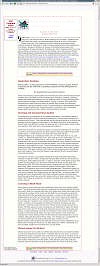
Although all of PEP's pages have a similar visual appearance (example at left shows the Linux Konqueror browserdisplaying an entire PEP document under Debian Linux), it may be somewhat less obvious that they have a similar logical structure, as well. Visitors can use this structure to maximize the efficiency of gaining information from them. Each article on PEP starts with a one or two paragraph introduction which sets the context of the article and gives a glimpse of what will be discussed in the following paragraphs. Then follows the main text of the article, in detail. Finally, the article ends with a summary restatement of the article's main points, usually with general tips about how to put that information into practice (no pun intended!).
This structure allows you to peruse the introduction of the article quickly to determine if it is of interest. If not, you can use the links on the page to move on to something more useful. If you're in a hurry, just go to the very end of the article at the bottom of the page and read everything after the last section heading to get the main points. If you're interested in the topic and have the time, read the full article for maximum benefit. You'll find that using the structure of articles on PEP to best advantage will save you lots of time. Maybe you can use that time to look at some of the other 1000 pages of the site!
Locating Specific Information
You can find information by simply surfing the site; in fact, we think you'll find it fun to do that on occasion. Sometimes, though, you may just want to find an article or review quickly without looking at the intervening pages. We've provided several different tools to help you do that.
 If you need information on
a given topic, just go to the Search The Piano
Education Page sub-page. As long as your browser can accommodate HTML
forms (the overwhelming majority can), you can use this page to find all the pages which
refer to the keywords you supply. You simply type in the keywords (e.g. "piano
lesson" or "software") which describe the topic that interests you and
press the Search button. You'll get back a list of hyperlinked pages which use that term
or terms, ranked in order of estimated relevance to your inquiry. You can then jump
directly to the pages from the search output. If you don't get quite what you want from
the search, just click your browser's Back button to go back to the form and try again.
Full directions and examples are available on the Search page.
If you need information on
a given topic, just go to the Search The Piano
Education Page sub-page. As long as your browser can accommodate HTML
forms (the overwhelming majority can), you can use this page to find all the pages which
refer to the keywords you supply. You simply type in the keywords (e.g. "piano
lesson" or "software") which describe the topic that interests you and
press the Search button. You'll get back a list of hyperlinked pages which use that term
or terms, ranked in order of estimated relevance to your inquiry. You can then jump
directly to the pages from the search output. If you don't get quite what you want from
the search, just click your browser's Back button to go back to the form and try again.
Full directions and examples are available on the Search page.
 If you can't describe your area of interest well with keywords or you just
want to get an idea of which documents might be of most interest to you, take a look at The Piano Education Page Score. The Score is a
categorization of all the documents on the site by topic type or interest group (parent, teacher, kids, etc). This will give you a better idea of where
to look for information on more general topics like teaching piano or
finding learning aids. The Score itself is hyperlinked so that you can jump
directly from it to any area of the site. Use the Score to find those
documents quickly that will most interest you or to get our take on what
those new to the site should see.
If you can't describe your area of interest well with keywords or you just
want to get an idea of which documents might be of most interest to you, take a look at The Piano Education Page Score. The Score is a
categorization of all the documents on the site by topic type or interest group (parent, teacher, kids, etc). This will give you a better idea of where
to look for information on more general topics like teaching piano or
finding learning aids. The Score itself is hyperlinked so that you can jump
directly from it to any area of the site. Use the Score to find those
documents quickly that will most interest you or to get our take on what
those new to the site should see.
 To see a hyperlinked list of all the document
titles on The Piano Education Page, check out the
Piano Education Page Table of Contents. The Table of Contents is
complementary to the Score; it doesn't show the full structure of the hyperlinks between
documents, but does list all the documents by title. It's a good way to get a feeling for
what's available on the site, even if you're not looking for anything in particular.
To see a hyperlinked list of all the document
titles on The Piano Education Page, check out the
Piano Education Page Table of Contents. The Table of Contents is
complementary to the Score; it doesn't show the full structure of the hyperlinks between
documents, but does list all the documents by title. It's a good way to get a feeling for
what's available on the site, even if you're not looking for anything in particular.
Maximizing the Appearance of PEP
The Piano Education Page is designed to have a clean look that displays well in most browsers and can be downloaded in a reasonable period of time. Nonetheless, we think you'll find that it looks best in modern browsers like Internet Explorer, Safari, Opera, or Firefox. The proprietary browsers offered by most Internet Service Providers are limited in their capabilities and in the formatting commands they recognize. PEP uses Cascading Style Sheets (CSS) to enforce a consistent look on the whole site and make it visually more interesting. PEP and most other sites will look worse in most ISP and older browsers.
The increasing use of mobile devices (smart phones, tablets, PDA's, iPhone's, etc) with small screens has encouraged us to make PEP friendly to users of those devices. While PEP will probably never look as good on tiny mobile devices as it does on a computer monitor screen, we have made an effort to provide special support for mobile devices on PEP. Mobile users need do nothing special to use these new features. They will find that their devices will display PEP more legibly, with a minimum of horizontal scrolling, particularly in "portrait" modes of their device. PEP on their full-sized monitors will be unchanged. We hope this will make the site more accessible and legible for those "on the go" and for those who prefer to view the site on a tablet computer.
Hearing the Music and Sounds
 The home page and several of the sub-pages of PEP have background
music and sounds built right into them, as a part of our
regular feature Listening Focus. The background music is changed with every
update, so, if you visit regularly, you'll eventually hear a sizable part of the
critical piano literature. Each update's Listening Focus
illustrates a certain
unifying principle to exemplify certain elements of music:
period, style, composer, thematic material, etc.
The home page and several of the sub-pages of PEP have background
music and sounds built right into them, as a part of our
regular feature Listening Focus. The background music is changed with every
update, so, if you visit regularly, you'll eventually hear a sizable part of the
critical piano literature. Each update's Listening Focus
illustrates a certain
unifying principle to exemplify certain elements of music:
period, style, composer, thematic material, etc.
You'll need a sound card, speakers, and a sound-capable browser (just about any one now) to hear music on your system. Most modern computers have everything you need in the way of hardware necessary to hear the music. You can also download the MIDI files from The Audition Room sub-page and play them on your home computer later, so long as you have a sound card and speakers in your system. To do that, just right click on the work you want to download, choose Save As.. from the resulting pop-up menu and click OK to save the file to your hard disk. It can then be played by any program capable of playing MIDI files. Chances are your computer has several such programs on it, including those which came with the computer.
You may well find that the music sounds "tinny" on some older systems. Although the MIDI sequences we use have some limitations vis a vis real performances on the acoustic piano, this tinny character is due to your speakers and/or sound card, not the MIDI files. The best advice we can give you to solve that problem is to spend about $50 for a pair of decent computer speakers with a separate sub-woofer. You'll find the quality of the music to be tremendously improved if you do so. Although less important, we have also seen some noticeable differences in the quality of sound from different player programs.
On other older systems, the piano music may sound more like a harpsichord than a piano. If your system sounds like this, chances are you have an old FM-synthesis, rather than wavetable, sound card. As the name implies, an FM-synthesis sound card generates the sound by adding together simple sine waves of varying amplitude, frequency and phase (relative position), a process known as Fourier synthesis. A wavetable sound card better duplicates the richness of sound of an acoustic piano because it uses stored samples of piano sound to produce sound. Since wavetable sound cards cost well under $50 these days, your best bet is probably to replace your sound card or buy a newer computer with an up-to-date sound card. If you hear no sound at all on your computer from any program, you probably have a problem with driver configuration or hardware connection which you need to address with your computer or sound card manufacturer.
Some visitors may be able to hear some MIDI files in the Audition Room, but not others. This is caused by the fact that the Media Player is not compatible with all MIDI files. A more compatible player which will play all the files is the free QuickTime Player, which you can download from the link and install. This is the one we recommend, although there are a few others.
Visitors often ask why we send MIDI performances of piano music, rather than recordings of actual live performances. While there are serious copyright issues attending the use of real acoustic piano performances, the main reason we use MIDI files is that they are MUCH smaller in size than even compressed versions of acoustic piano performances. Typically, a MIDI file is a factor of 50 to 100 smaller in size than even a highly compressed (and, hence, somewhat degraded) waveform file. We suspect that few of our users would be willing to wait 45 minutes for a 10 MB acoustic piano performance to download over their 56 K modem when they can get a MIDI performance of the same work in seconds. Although broadband connections are common these days, the copyright issues remain. Such issues have even made MIDI files difficult to obtain and maintain.
 We have made a
special effort to provide kids with their own Just for Kids
sub-page with lots of fun and educational stuff, including background piano music
specially chosen for children and different from that on the home page, the Audition Room, or the Listening
List and Composer Resource pages. The Kids page also has the Meet The
Composer interviews which take the child on a sound-filled trip on a time machine to meet,
interview, and hear some of the music of a famous composer in his own milieu. The hardware
and software requirements for the Kids page sounds are the same as those for the other
pages. Also on the Kids page is a selection of fun sounds which you can download free for
playing on your computer.
We have made a
special effort to provide kids with their own Just for Kids
sub-page with lots of fun and educational stuff, including background piano music
specially chosen for children and different from that on the home page, the Audition Room, or the Listening
List and Composer Resource pages. The Kids page also has the Meet The
Composer interviews which take the child on a sound-filled trip on a time machine to meet,
interview, and hear some of the music of a famous composer in his own milieu. The hardware
and software requirements for the Kids page sounds are the same as those for the other
pages. Also on the Kids page is a selection of fun sounds which you can download free for
playing on your computer.
Finding Out More or Making Suggestions
 We are happy to try to answer your questions and to have your input
about how we can improve the site. Every constituent page of PEP has one or more links
that you can click for more information or to offer comments and suggestions. Just
clicking on those links will start your e-mail program and address the e-mail
automatically to us. You then just type in your message. In addition, we also have a
special Give Us Your Review page, which
allows you to utilize either standard e-mail links or HTML forms to correspond with us.
Note that, if you use the HTML form method, you MUST supply us with a valid e-mail
address, since we cannot reply to your message without it. We try to answer all e-mail
within two days of receipt.
We are happy to try to answer your questions and to have your input
about how we can improve the site. Every constituent page of PEP has one or more links
that you can click for more information or to offer comments and suggestions. Just
clicking on those links will start your e-mail program and address the e-mail
automatically to us. You then just type in your message. In addition, we also have a
special Give Us Your Review page, which
allows you to utilize either standard e-mail links or HTML forms to correspond with us.
Note that, if you use the HTML form method, you MUST supply us with a valid e-mail
address, since we cannot reply to your message without it. We try to answer all e-mail
within two days of receipt.
The Piano Education Page Forums
 Sometimes you may have a topic about which you would like to ask the other
visitors to PEP or would like to share with other visitors and the PEP staff. PEP can help
there, too! Just sign in to the PEP
Forums. You can
read small parts of the Board just by going there, but you must register if you would
like to post to the Board or read the majority of the forums. As the very soul of a
Forums is participation, we think most visitors will find it worth a couple minutes
to register. Use of the Forums is entirely free; we make no use of the registration
information other than for the purposes of running the
Forums. We do not ask for any
personal information, but users should keep in mind that, with some exceptions, material
posted to the Board is inherently public. Use the Board if you want to reach a wider
audience with your comments or questions; send us a private e-mail if your inquiry is
personal or not otherwise amenable to publication. To learn more about the
Forums and the way it works, see our
Piano Education Page Forums FAQ.
The Forums have an extensive Help system, as well, to answer most of the
common questions.
Sometimes you may have a topic about which you would like to ask the other
visitors to PEP or would like to share with other visitors and the PEP staff. PEP can help
there, too! Just sign in to the PEP
Forums. You can
read small parts of the Board just by going there, but you must register if you would
like to post to the Board or read the majority of the forums. As the very soul of a
Forums is participation, we think most visitors will find it worth a couple minutes
to register. Use of the Forums is entirely free; we make no use of the registration
information other than for the purposes of running the
Forums. We do not ask for any
personal information, but users should keep in mind that, with some exceptions, material
posted to the Board is inherently public. Use the Board if you want to reach a wider
audience with your comments or questions; send us a private e-mail if your inquiry is
personal or not otherwise amenable to publication. To learn more about the
Forums and the way it works, see our
Piano Education Page Forums FAQ.
The Forums have an extensive Help system, as well, to answer most of the
common questions.
Making The Piano Education Page Your Start Page
If you would like to be kept aware of all the new information that we add every month, or use the site in your studio on a regular basis, or if you just like to listen to the music, there is an easy way to do all those things. Make PEP your browser's start page! It doesn't cost anything and it's easy to do. Once you've done it, your browser will greet you with PEP and its beautiful piano music. Here's how:
Firefox Users:
- In Firefox, click Tools, Options.
- In the resulting window, use the drop down menu to change the When Firefox Starts option to Show My Home Page. Then in the edit box just below entitled Home Page, fill in the URL for PEP (http://pianoeducation.org)
- Click OK
- That's it! Firefox will now load PEP automatically on startup.
Internet Explorer Users:
- In Internet Explorer, click View, Options. Choose the Navigation tab by clicking on it.
- In the Customize section of the resulting window, click on the drop down menu (downward pointing arrow) and choose Start Page from the menu. Then in the edit box just below entitled Address, fill in the URL for PEP (http://pianoeducation.org).
- Click OK
- That's it! Internet Explorer will now display PEP automatically on start-up.
Safari Users:
- In Safari, click the "gear" settings icon drop-down in the upper right of the Safari window
- Choose Preferences
- Click the General tab icon and type in "http://pianoeducation.org" under the home page line
- That's it! Safari will now display PEP automatically on start-up.
If you use a different browser, you'll be able to set a start page in similar ways.
Using The Piano Education Page Materials
Everything on The Piano Education Page is available for reading on the Internet by any interested party. We make no charge of any sort for accessing PEP or reading its materials nor do we receive remuneration of any sort for running the site. That said, we remind you that PEP is copyrighted in the U.S. and most foreign countries and, as such, cannot be indiscriminately copied or reproduced without risk of very large civil penalties, including paying attorney costs for any infringement action.
Nonetheless, in keeping with the educational goals of PEP, we allow any visitor to make a single, personal use hard copy of any part or parts of PEP royalty-free. You need not request our permission to make a hard copy for your own personal, non-commercial use. Similarly, other sites may link The Piano Education Page without our explicit permission, though we are always happy to have other site owners notify us of links to The Piano Education Page. Copying or reprinting PEP in whole or in part in any other circumstance without advance permission from us is absolutely forbidden.
 Teachers often ask us if they can
reproduce multiple copies of parts of PEP for use in educational settings. Again, we
generally allow limited, royalty-free, educational-use reprinting of parts of PEP, subject
to certain conditions and limitations. If you would like to use hard copies of PEP with
your students, consult our page Reprinting from The
Piano Education Page for instructions and conditions. We also allow
conditional use of graphics from our Downloadable Musical
Graphics page on Web sites, newsletters, and educational brochures. You can
find the conditions and procedures for doing that on Reprinting
from The Piano Education Page.
Teachers often ask us if they can
reproduce multiple copies of parts of PEP for use in educational settings. Again, we
generally allow limited, royalty-free, educational-use reprinting of parts of PEP, subject
to certain conditions and limitations. If you would like to use hard copies of PEP with
your students, consult our page Reprinting from The
Piano Education Page for instructions and conditions. We also allow
conditional use of graphics from our Downloadable Musical
Graphics page on Web sites, newsletters, and educational brochures. You can
find the conditions and procedures for doing that on Reprinting
from The Piano Education Page.
The Piano Education Page represents literally thousands of hours of work by many talented individuals. We enforce our copyrights on the site vigorously, both to protect the integrity of the site as an educational, non-commercial resource and to preserve our legal rights as authors. Individuals whose intended use of PEP's material is commercial in nature or beyond the conditions and limitations we place on royalty-free reprinting must contact us regarding licensing.
Site Policies
Running a site as large and wide-ranging as PEP takes a lot of time and effort dealing with a wide range of topics and issues. To help our visitors understand how we run the site, we have prepared an extensive Site Policies page. It's the best place to check if you have general questions about topics like how we manage PEP, deal with e-mail and privacy issues, and choose sites to link, among many others.
Last updated: 02/02/24